
What Home shows you
Read what your role can do on a team, what waits for a person, and how the team is doing, all on Home.
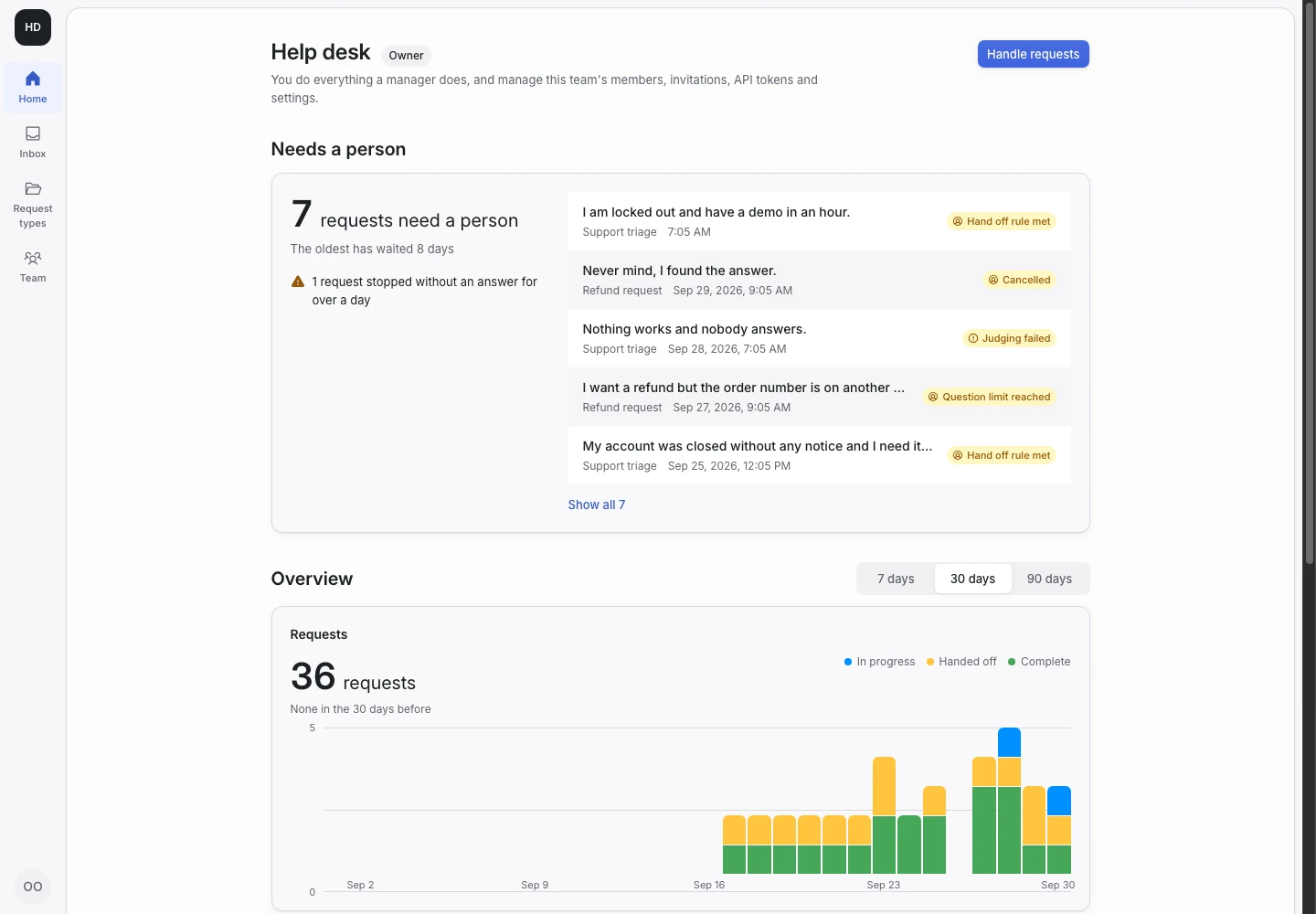
Product screen with sample data. Intake is the previous working name.
Where you are and what you can do
Home is the first screen after sign-in, and the first place in the rail. Its heading is the name of your current team. Beside it, a chip shows your role: Owner, Manager or Agent. Under it, one sentence says what that role can do on this team.
- An agent reads the requests that arrive, sees why each ended, marks them handled, and reads and tries the team's request types.
- A manager also builds, tests and publishes the request types that decide the team's requests.
- An owner also manages the team's members, invitations, API tokens and settings.
At the end of the heading stands one action. It is Handle requests when a request waits for a person. On a new team it is the next step of the setup guide. Otherwise it is Request types for owners and managers, and Open inbox for agents.
Start taking requests
Owners and managers of a new team see a short guide with the steps to the first request:
- Create a request type. Start from a template, or from Blank.
- Publish it. Publishing makes a version.
- Send a first request. Open the public link and write a request as an applicant would.
- Invite your team. Owners only.
A step is done when the team's data says so. You cannot dismiss a step. The guide leaves when the last step is done.
Needs a person
This part counts the handoffs that no one has marked handled, and says how long the oldest has waited. The newest five stand beside the count, each with the request type, the start of the summary and why it reached a person. Select a request to open it. Show all opens the inbox on its default view.
A request that stopped without an answer for over a day is counted under the same heading. Select the sentence to open the inbox's Abandoned view.
Overview
The overview shows three charts for the last 7 days, 30 days or 90 days. Days start at midnight in the installation's time zone, which the overview names.
- Requests counts the requests that arrived, one column per day, or per week for 90 days, stacked by their status now. The total is compared with the period before.
- Outcomes counts the requests that finished, by request type and outcome. The five busiest request types have a row each; the rest are one row.
- Handed off states the share of finished requests that reached a person, its change in points, and why: the hand off rule, the question limit, a failed judgment, or a cancelled request.
Every number counts stored requests of the current team. Examples, replays and simulations are never counted.
Go to
The cards at the end list the places your role can open, each with a line on what you do there and its facts: unhandled handoffs and requests in progress, live request types and unpublished changes, and, for owners, members, pending invitations and API tokens.