
Manage your profile and sign-in
Update your own details and enable two-factor sign-in.
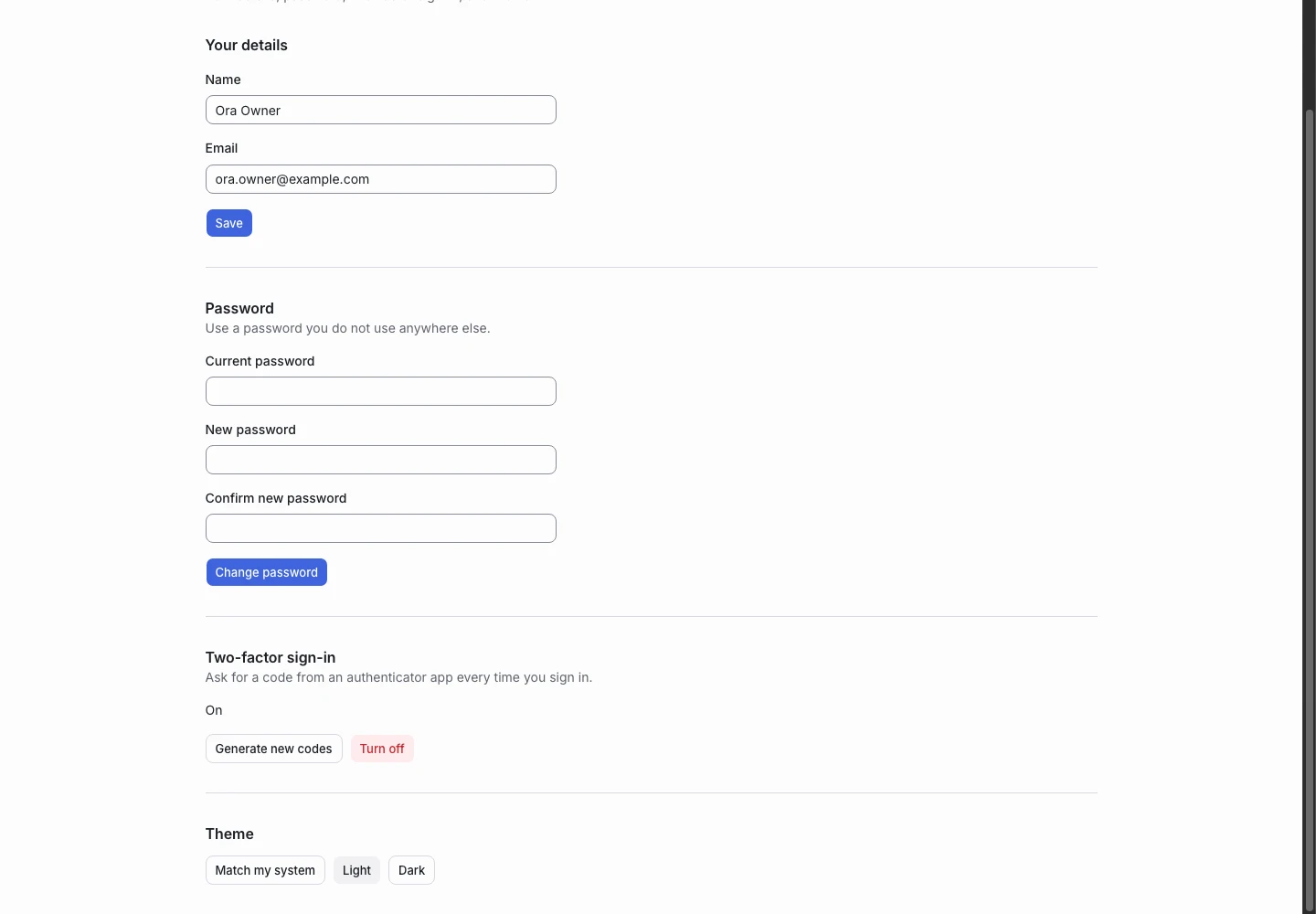
Product screen with sample data. Intake is the previous working name.
Open your profile
- Open the user menu.
- Select Your profile.
- Check your name and email address.
- Save any intended changes.
The product can ask you to confirm your password before a sensitive change.
Change your password
- Open the password section.
- Enter your current password.
- Enter the new password.
- Confirm the new password.
- Save the change.
Use a password you do not use for another service.
Enable two-factor sign-in
- Open the two-factor section.
- Confirm your password if asked.
- Set up the account in your authenticator.
- Enter the current code.
- Complete the confirmation.
- Store the recovery codes in a secure place.
Treat recovery codes as secrets. Do not include them in a support message.
Choose a theme
The profile includes a theme preference. Select the option that suits your screen. The product catalog includes light and dark views.
Reset a forgotten password
Use Forgot password on the sign-in screen. Follow the email instructions.
If no message arrives, check your spam folder and the installation’s email delivery. A demonstration installation can disable outbound mail and password changes.
Access is separate from identity
Changing your profile does not change a team role. Ask a team owner to change a membership. Ask an account owner about account-level grants.