
Submit a request through a link
See the request journey from the applicant’s first answer to the confirmation screen.
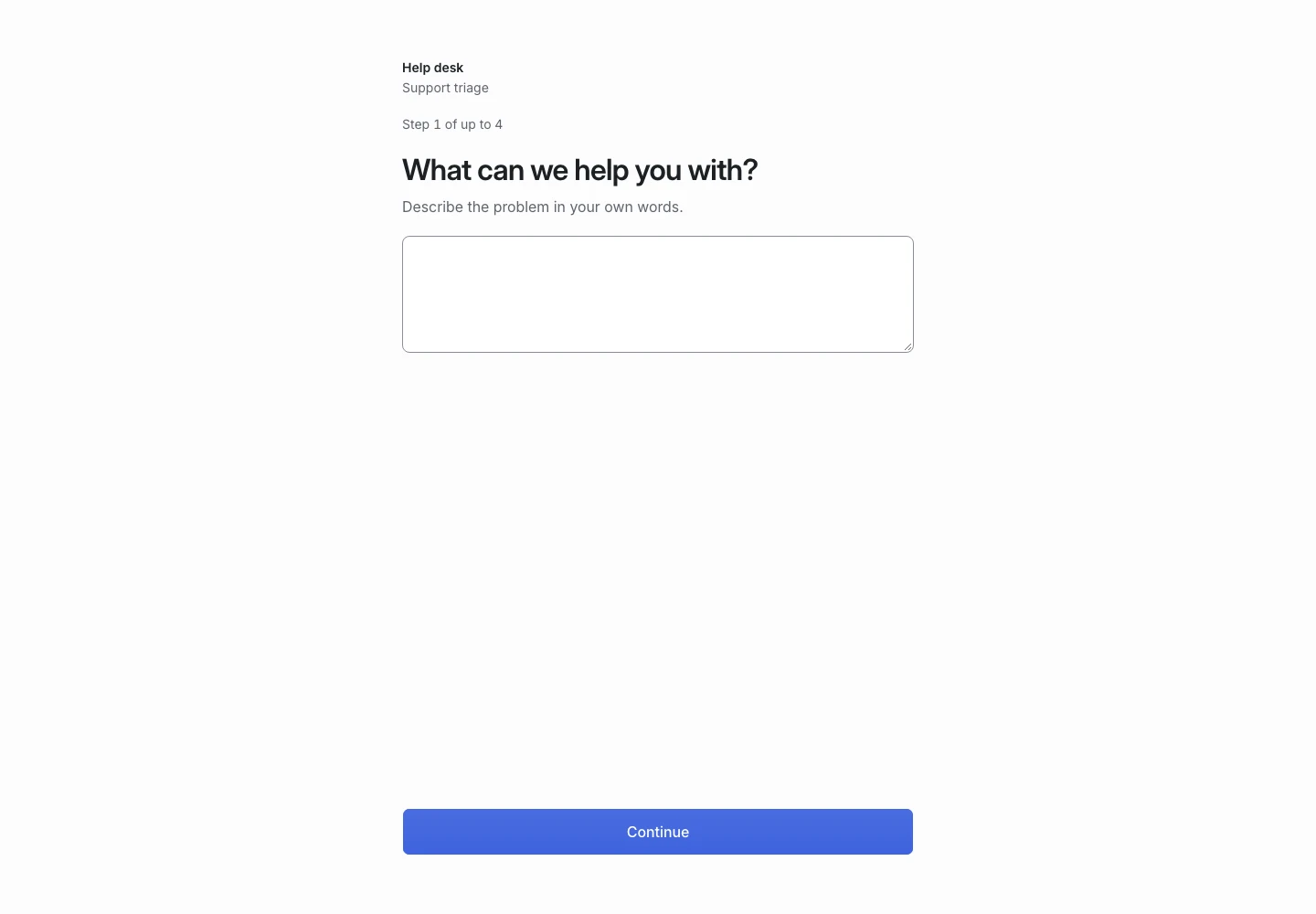
Product screen with sample data. Intake is the previous working name.
Open the public link
A manager shares the link for a published request type. The applicant needs no account.
The screen shows the team identity, the request type, a question, and a progress indicator. It can show a link to the team’s privacy notice.
Answer each step
- Read the question.
- Enter an answer.
- Select Continue.
- Wait for the next question or confirmation.
- Answer any follow-up question that appears.
The progress indicator states the maximum number of steps. Some requests end before that limit.
Reach the confirmation screen
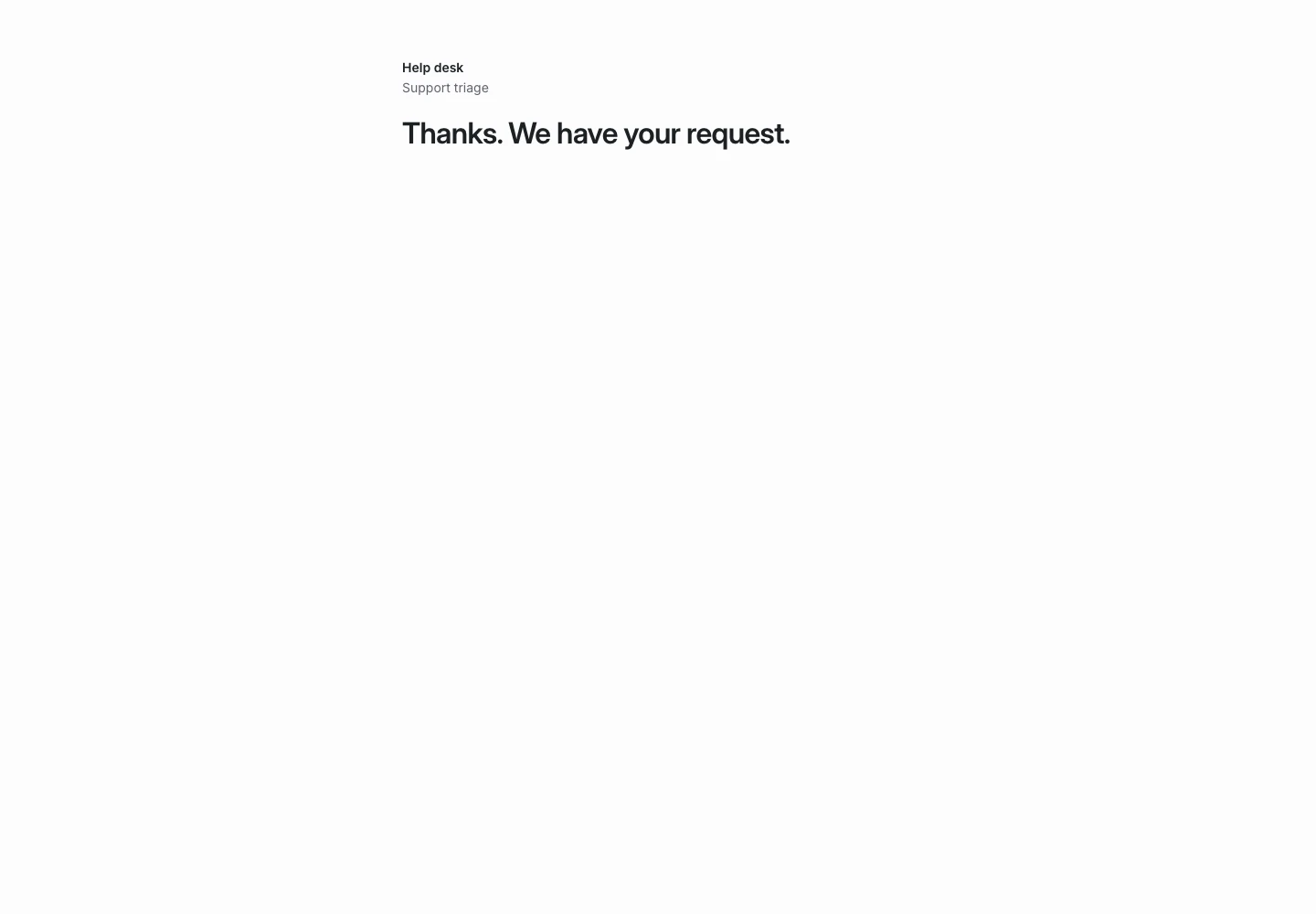
The final screen confirms that the team received the request. It can use a message the manager wrote.
The applicant does not see internal judgments, the outcome code, or the summary.
Cancel or resume
Use Cancel request and confirm if you want to stop. ClientStack shows a cancellation message.
An applicant continues an existing request through a browser cookie. A missing or expired cookie prevents access to that request and offers a fresh start. Do not send an API token to the applicant.
Handle a problem
If judging fails and the version keeps the step, the answer stays on screen so the applicant can retry. If the version hands off on failure, the applicant sees the received screen.
If another browser tab advanced the request, use the current step that the screen shows. See troubleshooting for unavailable links.