
Simulate a request
Try your draft as an applicant and inspect each judgment before you publish.
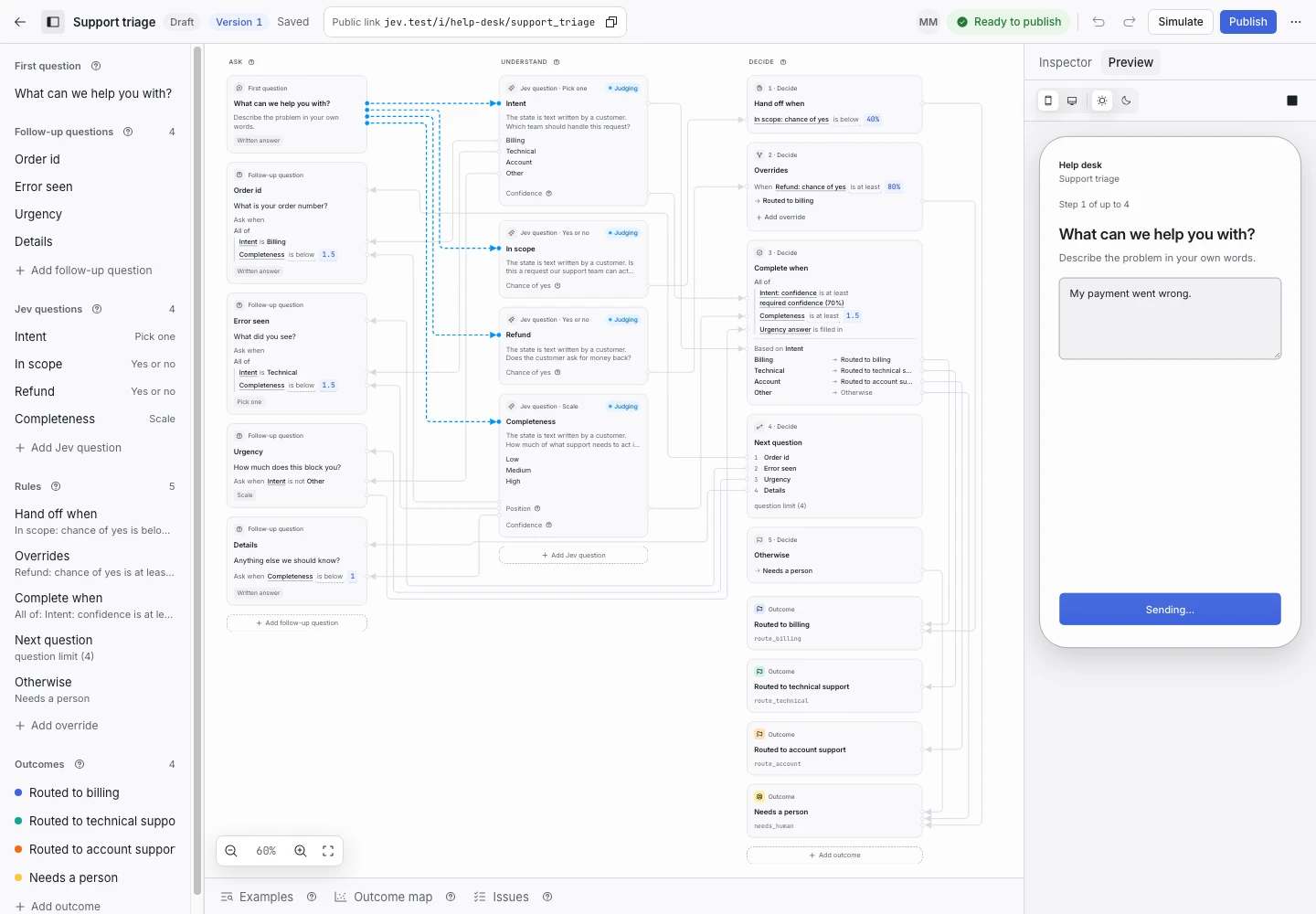
Product screen with sample data. Intake is the previous working name.
Start a simulation
A simulation tests the draft without creating a request in the inbox. Use sample text because live judging sends it to TypeSafe.
- Open the request type in the editor.
- Resolve any blocking issue.
- Select Simulate.
- Answer the first question.
- Select Continue.
- Inspect the judgment values on the canvas.
- Follow the highlighted decision path.
Repeat until the preview shows a final state. Check the follow-up questions as well as the outcome.
Read the decision path
The path shows which conditions matched. It distinguishes a handoff, an override, a mapped outcome, and a follow-up question.
Select the relevant rule to inspect its conditions. Check the values it read at that step.
Use What-if
What-if changes a judgment value in the simulation so you can test a boundary.
- Select a value in the simulation.
- Change the value.
- Read the new decision path.
- Select Reset to Jev to restore the recorded value.
A What-if change does not make another Jev call. It does not prove that Jev would produce that value for a real applicant.
Test both sides of a threshold
Try a value just below the threshold and a value at the threshold. Check both outcomes.
Then test a real sample through Jev. Save a useful sample as an example with the expected outcome.
Preview the applicant screen
Use the phone and desktop preview frames to check the prompt, help text, and confirmation message. A narrow preview is useful for long labels and multiple choices.
Continue with examples and replay.