
Give people the right access
Invite members and choose the team role that matches their work.
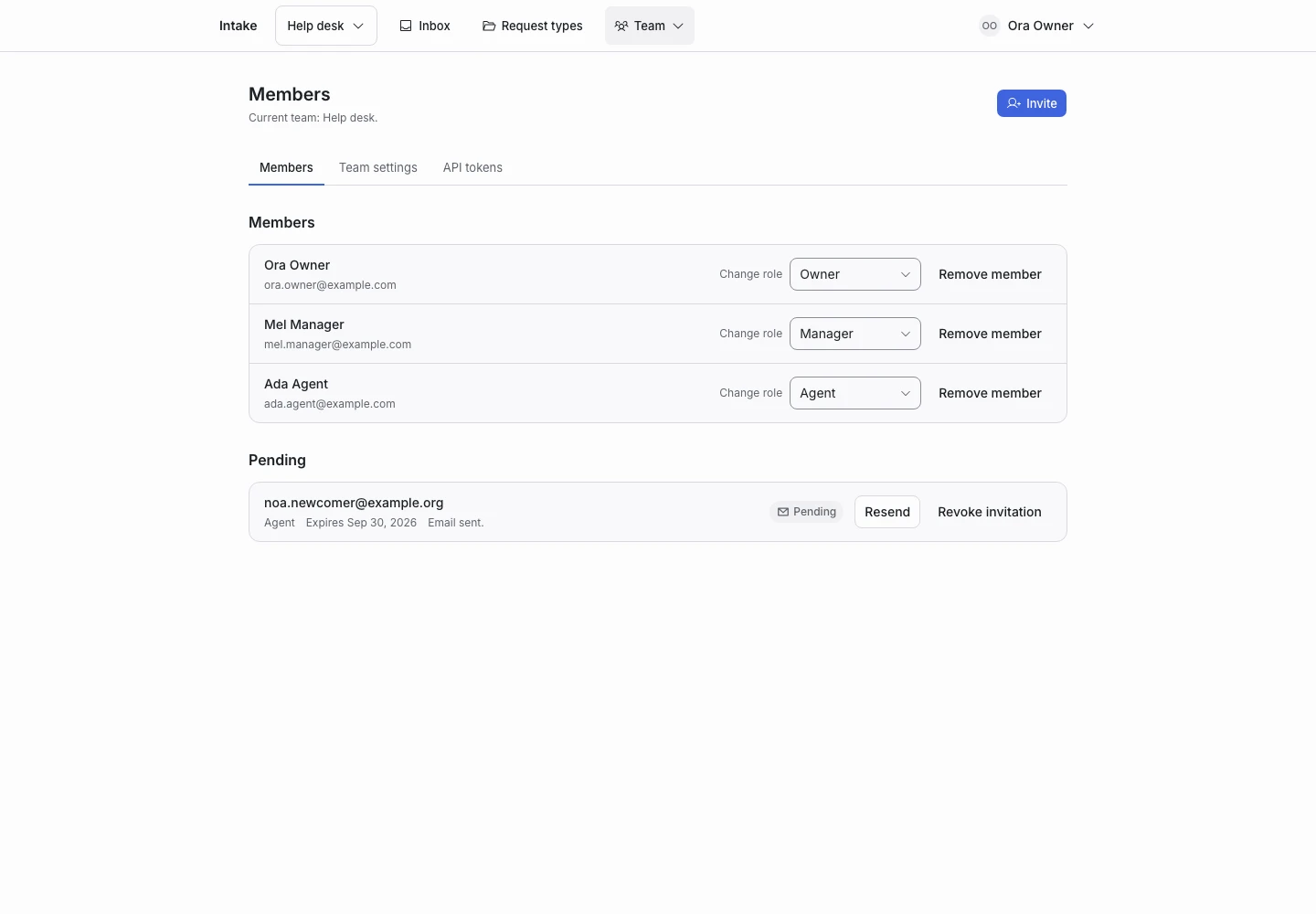
Product screen with sample data. Intake is the previous working name.
Choose a team role
| Role | Main permissions |
|---|---|
| Owner | Manage members and tokens, plus manager permissions. |
| Manager | Build, test, and publish request types; manage examples; read requests. |
| Agent | Read requests and request types; mark final requests handled. |
An agent cannot edit or publish a draft. Read-only simulation uses available saved judgments and does not grant live judging rights.
Invite a member
- Open the correct team.
- Open Members.
- Enter the invitee’s email address.
- Choose the role.
- Send the invitation.
- Check its delivery or pending state.
The invitation grants only that team role. It does not grant account ownership or installation administration.
Accept an invitation
- Open the invitation from the email.
- Sign in if you already have an account.
- Create a password if you are a new user.
- Accept the invitation.
- Open the team.
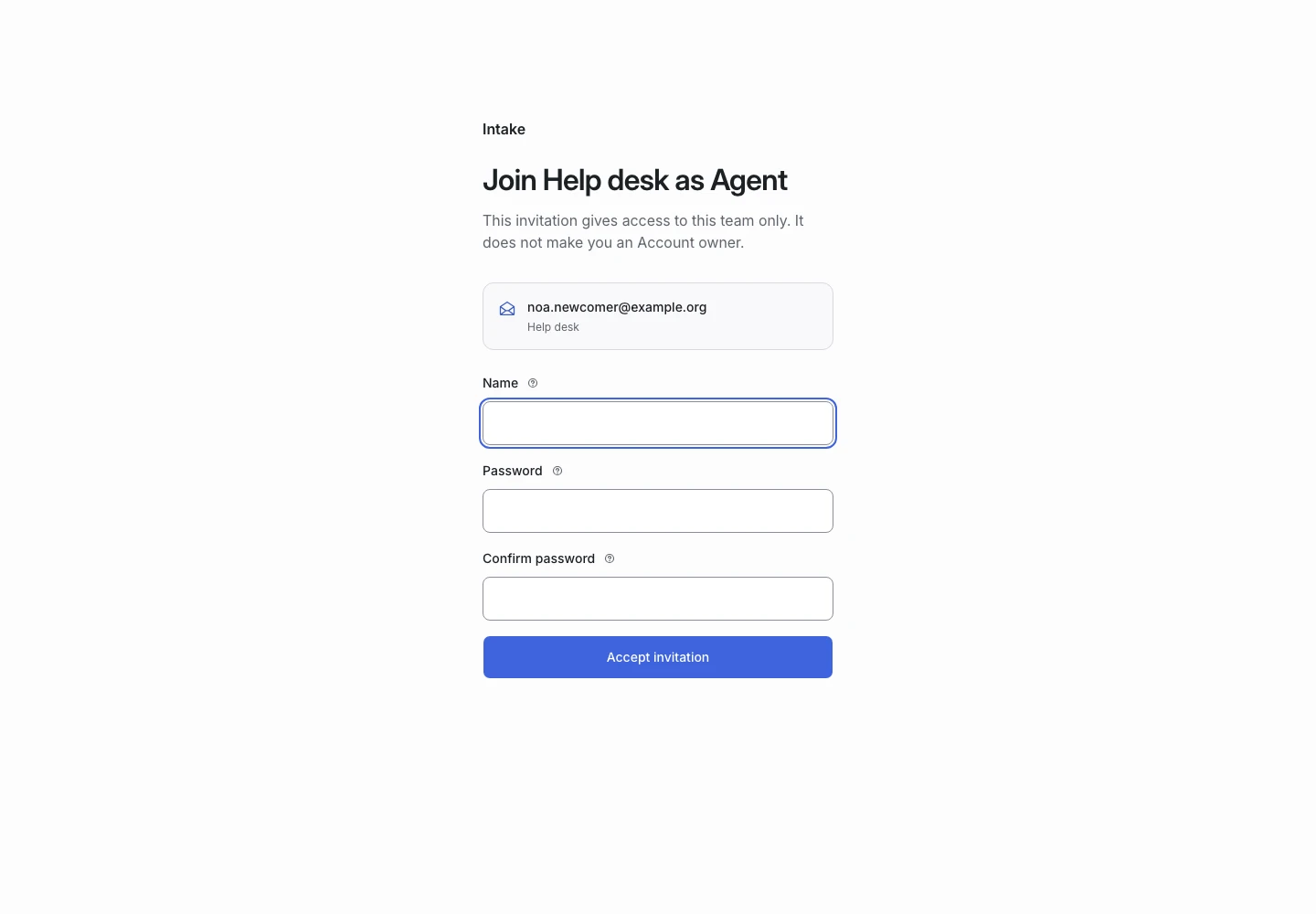
An existing user keeps their password and second-factor settings. If you signed in with the wrong email, switch to the invited identity.
Change or remove access
A team owner can change roles or remove members. The product refuses an action that would remove the last owner.
Removing a team membership does not delete a shared user account or access to another team.
Resolve invitation problems
If delivery failed, use the available resend action. If the link expired or was revoked, ask the person who manages that invitation for a new link.
Keep account-owner invitations separate from team-member invitations. Accounts and teams explains the difference.