
Find your way around the editor
Use the canvas, outline, and inspector to build a request type without writing rule code.
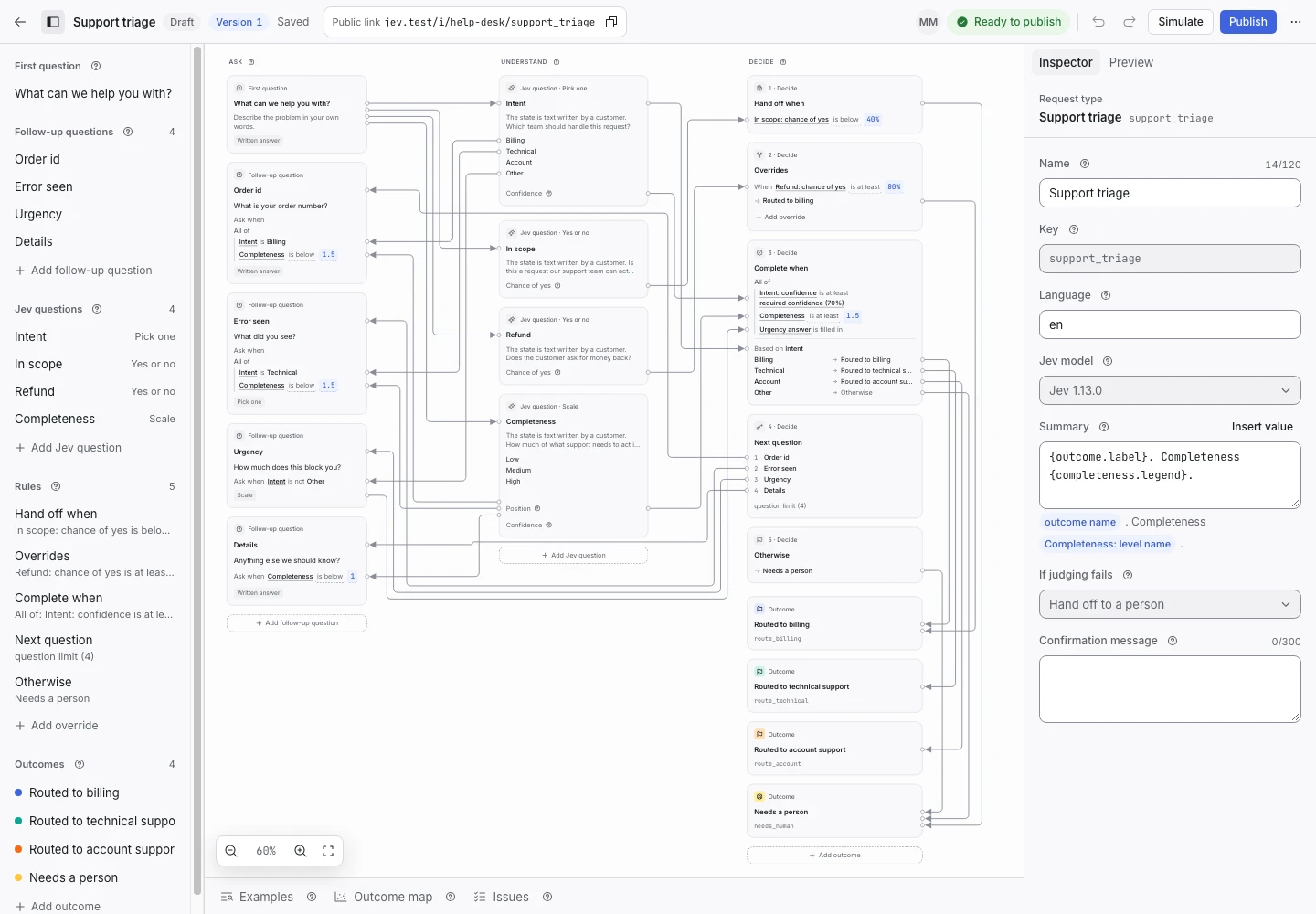
Product screen with sample data. Intake is the previous working name.
The canvas
The canvas connects three parts of the request type.
- Ask contains the first question and follow-up questions.
- Understand contains the Jev questions.
- Decide contains the rules and outcomes.
Select an item to see its fields in the inspector. The connections show which values a rule reads. Use the zoom controls to see more of the request type.
The outline and inspector
The outline lists the same items as the canvas. Use it to find an item when the canvas is busy. The inspector shows the selected item’s fields and help.
- Select an item in the outline or canvas.
- Change the fields in the inspector.
- Wait for the header to show Saved.
- Check the issue count.
The source view exposes the request type as JSON. Use it only when you need direct source changes. The regular controls cover questions and rules.
The setup guide
A new request type includes a setup guide. Follow its steps to write the first question, define what Jev should understand, name outcomes, and set rules.
For a Blank request type, keep the first version small. Add one criterion, one useful follow-up question, and a human fallback.
The lower panels
Open Examples to compare expected and decided outcomes. Open Outcome map to inspect numeric boundaries. Open Issues to find problems that can block publication.
Header actions
Simulate opens the applicant preview. Publish opens the review sheet. The version control lets you inspect published content. A published request type also shows its public link.
An agent can inspect the editor with read-only access. Editing needs an owner or manager role. On narrow screens, the editor also uses a read-only view.
Concurrent changes
If another person changes the draft, read the conflict message before you continue. Refresh the draft and check your intended change. Do not assume the last save contains both people’s edits.