
Build your first request type
Use a template to create, test, and publish a request type for your team.
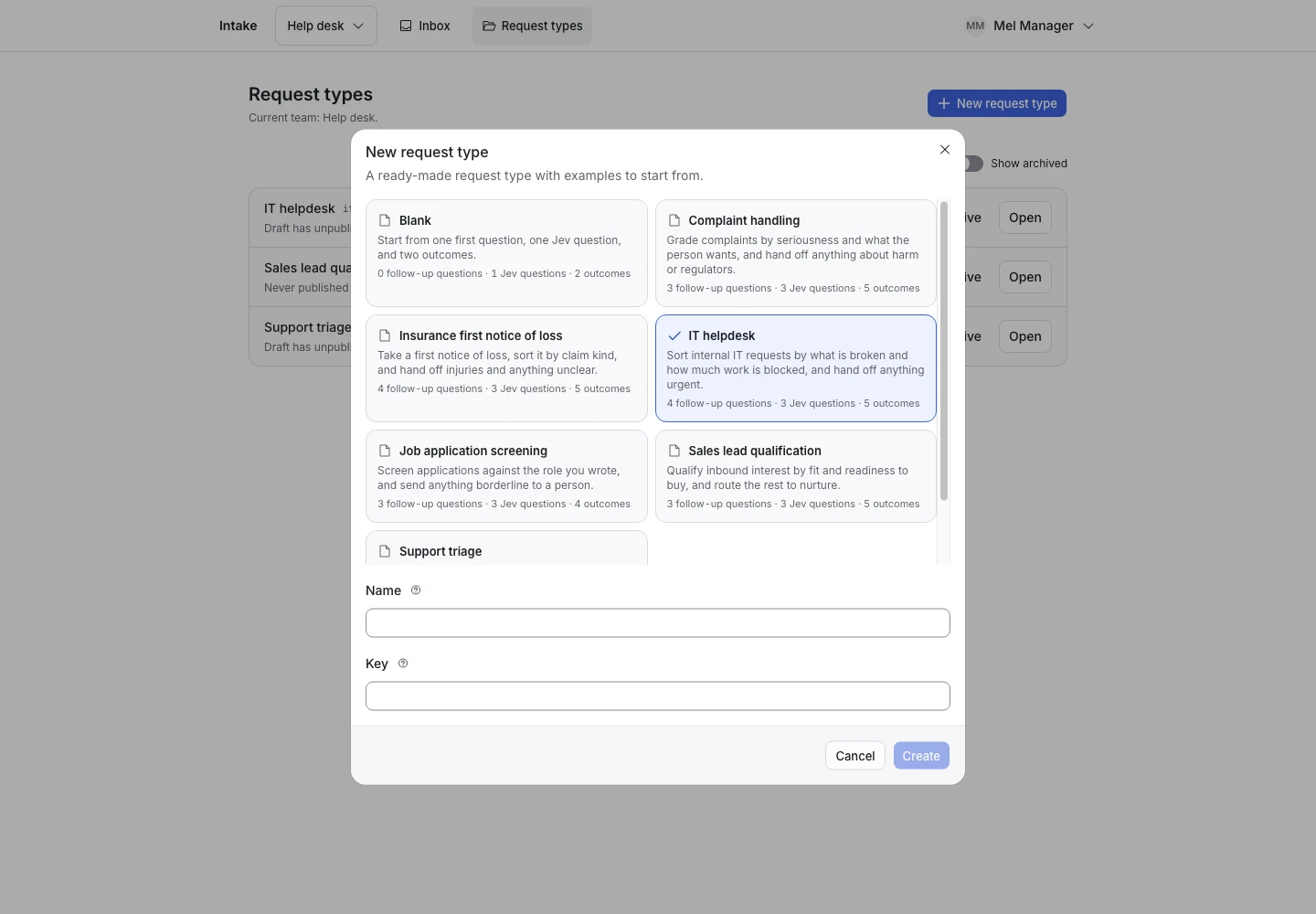
Product screen with sample data. Intake is the previous working name.
Before you start
Sign in as a team owner or manager. Use a desktop screen at least 1024 pixels wide to edit. Check that the installation has a working TypeSafe connection before a live simulation.
Use sample text while you learn. A simulation can send that text to TypeSafe.
Create the request type
- Open Request types.
- Select New request type.
- Select Support triage.
- Enter a name for the request type.
- Select Create.
The editor opens. The canvas has three columns: Ask, Understand, and Decide. The product makes keys from names.
Check the questions
- Select the first question in Ask.
- Read the question and its help text.
- Change the text to match the service your team provides.
- Select each follow-up question.
- Check its answer type and the rule that controls when it appears.
Keep each question about one thing. Ask for an order number only if the team needs it.
Test one request
- Select Simulate.
- Enter “I was charged twice for order A-1042”.
- Select Continue.
- Read the Jev judgments and the highlighted decision path.
- Answer each follow-up question.
- Check the final outcome.
A simulation does not create a real request in the inbox. Read the simulation guide to test other paths.
Review and publish
- Open Examples.
- Check which examples match their expected outcomes.
- Open Issues.
- Resolve each blocking issue.
- Select Publish.
- Review the changes, examples, checks, and model.
- Select Publish version 1.
The editor shows the published version and a public link.
Test the public link
- Copy the public link.
- Open it in a separate browser window.
- Submit a sample request.
- Open Inbox in the team view.
- Check the answers and outcome.
The applicant sees your confirmation message. The applicant does not see the internal outcome or summary.