
Work through the inbox
Find unhandled handoffs, read the context, and mark completed work as handled.
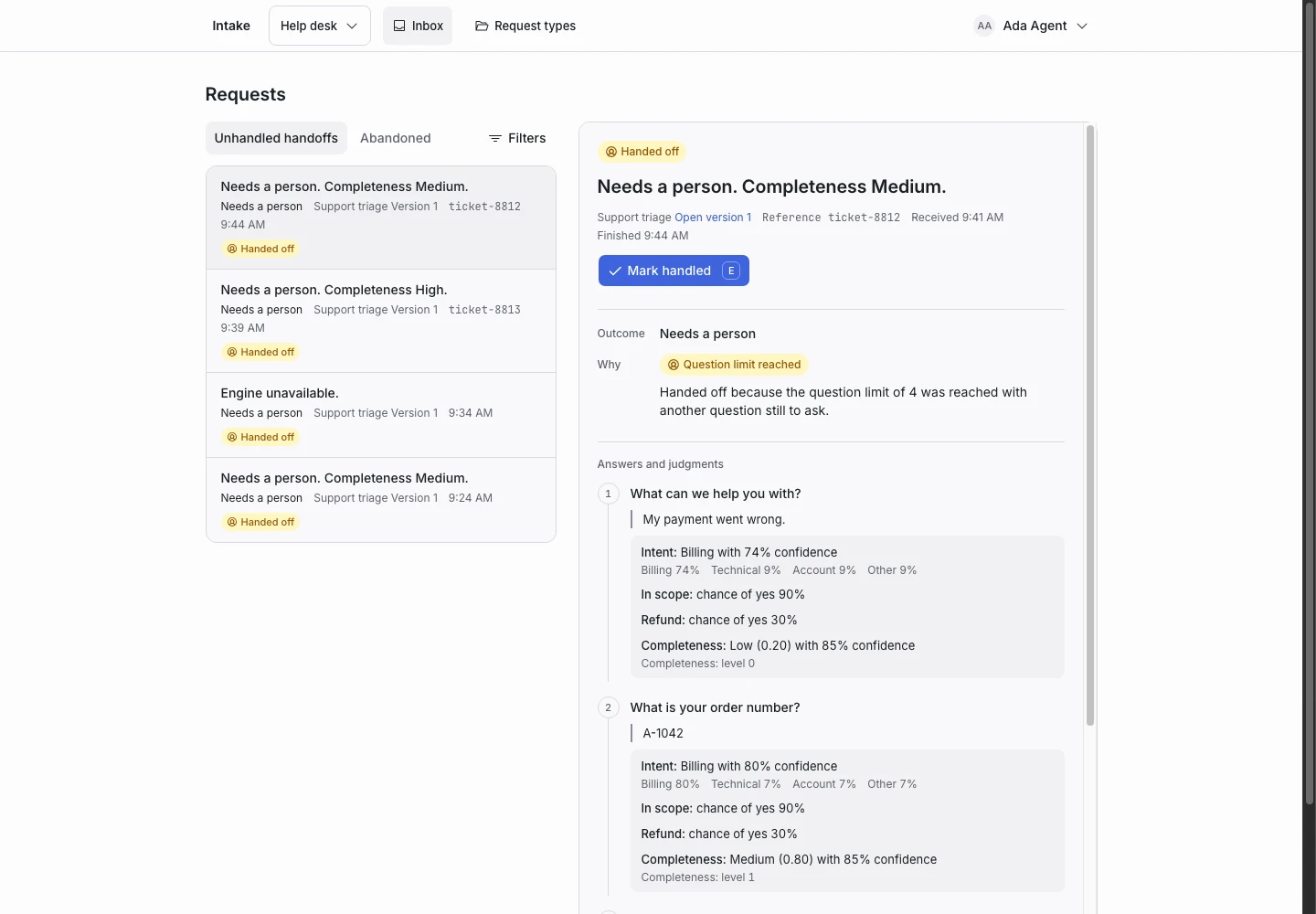
Product screen with sample data. Intake is the previous working name.
Start with unhandled handoffs
Open Inbox. The default view focuses on handoffs that nobody has marked handled.
- Select a request.
- Read its summary and Why explanation.
- Read the applicant’s answers.
- Complete the necessary work in your team’s system.
- Select Mark handled.
The next request can then receive your attention.
Use filters
Filter by request type, version, status, outcome, or handled state when you need a smaller list. Use the Abandoned preset to find requests that stopped before completion.
Abandoned is a filter for an unfinished request that has not changed for a period. It is not a separate request status.
Use the keyboard
| Key | Action |
|---|---|
j |
Move to the next request. |
k |
Move to the previous request. |
/ |
Move to filters. |
e |
Mark the selected final request handled. |
Do not use these keys while typing in a field.
Understand handled marking
Handled marks the team’s progress. It does not edit an answer, a judgment, or the verdict.
You can undo a handled action or reopen a handled request. A request that still needs an answer cannot be marked handled.
Improve a request type
A manager can save a finished request as an example, choose the expected outcome, and replay it against a revised draft. See examples and replay.